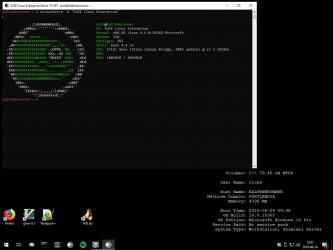
SUSE Linux Enterprise Server 15 SP1 is a multimodal operating system that paves the way for IT transformation in the software-defined era. The modern and modular OS helps simplify multimodal IT, makes traditional IT infrastructure efficient and provides an engaging platform for developers. As a result, you can easily deploy and transition business-critical workloads across on-premise and public cloud environments. SUSE Linux Enterprise Server 15 SP1, with its multimodal design, helps organizations transform their IT landscape by bridging traditional and software-defined infrastructure.
Windows System Installation Prerequisites
---------------------------------------------------------------------
WSL is not supported by Windows 10 in "S Mode."
Windows 10: Build 14388 or later.
Windows Server 2019: Version 1709 or later.
- To find the version and build number, right-click Start and select
Settings > System > About.
WSL must be enabled as a Windows Feature (both Windows 10 and Server):
1. Right-click Start and select Settings > Apps.
2. In the Apps & features window, scroll down and click the "Programs
and Features" hyperlink located under the Related settings heading
to open the classic Control Panel > Programs and Features window.
3. In the classic Control Panel > Programs and Features window,
click the "Turn Windows features on or off" hyperlink.
4. Check [x] the "Windows Subsystem for Linux" checkbox.
5. Reboot.
Alternatively:
1. Open Powershell as an Administrator and enter the following
as a single command:
Enable-WindowsOptionalFeature -Online -FeatureName Microsoft-Windows-Subsystem-Linux
2. Reboot.
Installing and Initializing SUSE Linux Enterprise Server 15 SP1 WSL
---------------------------------------------------------------------
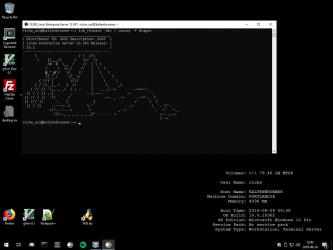
1. Download SLES-15-SP1 from the Windows App Store.
2. Double-click on the downloaded, "SLES-15-SP1.appx" file.
3. Click the "Install" button.
a. A Command Prompt window will open that will provide you with the
status of the installation process.
b. Installation will take a few moments.
c. To check that installation has not stalled,
click in the Command Prompt window and press the Enter key on your keyboard.
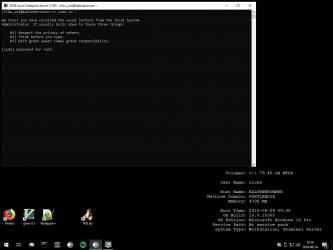
4. Once installation is completed, initialization will automatically begin.
a. You will be asked to enter a username.
The username you select does not need to be the same as your Windows username.
b. You will be asked to enter (and confirm) a password for the username you have
entered.
c. You will be asked if the username you have entered will be used for
administrative (sudo) purposes.
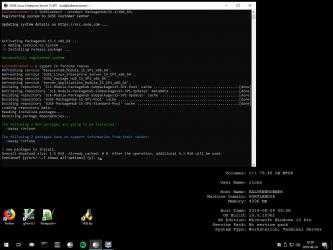
5. You may register SLES-15-SP1 with the command,
"sudo SUSEConnect -r [registration code]"
Updating SUSE Linux Enterprise Server 15 SP1 WSL
---------------------------------------------------------------------
Keeping SUSE Linux Enterprise Server 15 SP1 WSL up to date is done
exactly the same way as it is on every other SUSE product. Simply enter:
# sudo zypper ref
...followed by:
# sudo zypper up
Official app SUSE Linux Enterprise Server 15 SP1... functional qualities of SUSE Linux Enterprise Server 15 SP1:. SUSE Linux Enterprise Server 15 SP1 comes on Windows Store.
Application to listen and follow SUSE Linux Enterprise Server 15 SP1Rad. That is why more than 923 people have downloaded this software on Downloads.com As a great positive point, it must be said that its design is very clean, which helps to use it easily.
4. Check [x] the "Windows Subsystem for Linux" checkbox.
exactly the same way as in any other SUSE product. Just enter:
administrative purposes (sudo).
WSL is not supported on Windows 10 in "S Mode".
Enable-WindowsOptionalFeature -Online -FeatureName Microsoft-Windows-Subsystem-Linux
status of the installation process.
1. Open Powershell as administrator and enter the following
...followed by:
5. Reboot.
-------------------------------------------------- -------------------
second. The installation will take a few minutes.